
Create a QQ Mail account: sign up with email

QQ Mail
The Definitive Guide
In this guide you will learn:
• Before you start (2026): email vs phone
• QQ Mail sign up FAQ
• What is QQ Mail
• How to sign up for QQ Mail yourself
• We can create the QQ Mail account for you
• Download the QQ Mail app
• How to log in to QQ Mail
• How to sign out of QQ Mail
Feel free to check it in your own language:




Before you start (2026): you cannot sign up with email only
Updated 2026. A Tencent QQ sign up still creates a free QQ Mail account, but you cannot sign up with email or Gmail only. QQ requires a phone number for SMS. Email is the activation step after SMS — that is how you get a @qq.com email address.
For an international sign up in English, open mail.qq.com (English), click Sign Up, and change the country code. Try once even if you do not have a Chinese phone. If the SMS never arrives, we can create the QQ Mail account for you.
QQ Mail sign up FAQ
Can I sign up for QQ with email only?
No. “QQ sign up with email” still needs SMS. You can use email or Gmail to activate the account and receive the confirmation link, not to skip the phone.
Can I sign up with Gmail?
Yes as the activation mailbox (QQ sign up with Gmail). After SMS, QQ emails a link to Gmail. That does not replace the phone check.
Can I create a QQ account without a phone number?
Not on the official form. If you have no number that receives the SMS — or no Chinese phone and the international code fails — use our account creation service.
Do I get a @qq.com email address?
Yes. After you create the QQ account you get a QQ email address (QQ [email protected]). That is the free China email account people mean by QQ Mail.
Is there an international QQ sign up in English?
Yes. Use mail.qq.com sign up in English (en.mail.qq.com), or the English login page. Change country/region before entering your number. This is the QQ Mail English sign up.
What is my QQ login ID and password?
After sign up, save the QQ ID and password. First login often works with the QQ ID, not the new @qq.com address. Then you can QQ login with email once the mailbox is activated.
What is QQ Mail?

Most people in North America and Europe have never heard of QQ Mail, yet it’s one of the biggest email services in the entire world. A free QQ Mail account gives you a QQ email address ending in @qq.com.
QQ Mail or qqmail is China 's most popular free email platform, and considering China’s sizeable population, that allows it to rank alongside major services like Yahoo and Gmail.
But qqmail isn’t just for people living in China – it’s become quite popular in countries like Japan and Korea, and as more and more businesses in Europe and North America begin to work with companies based in these Asian countries, it’s becoming increasingly clear that having a qqmail account makes these interactions much easier.
If you want a more extense explanation, just check our what is qqmail for page.
How to sign up for QQ Mail yourself
You need a phone that can receive SMS. Tencent QQ sign up is a free international sign up if you change the country code on the English page. Email / Gmail comes after the SMS, when you activate the account and get your @qq.com email address.
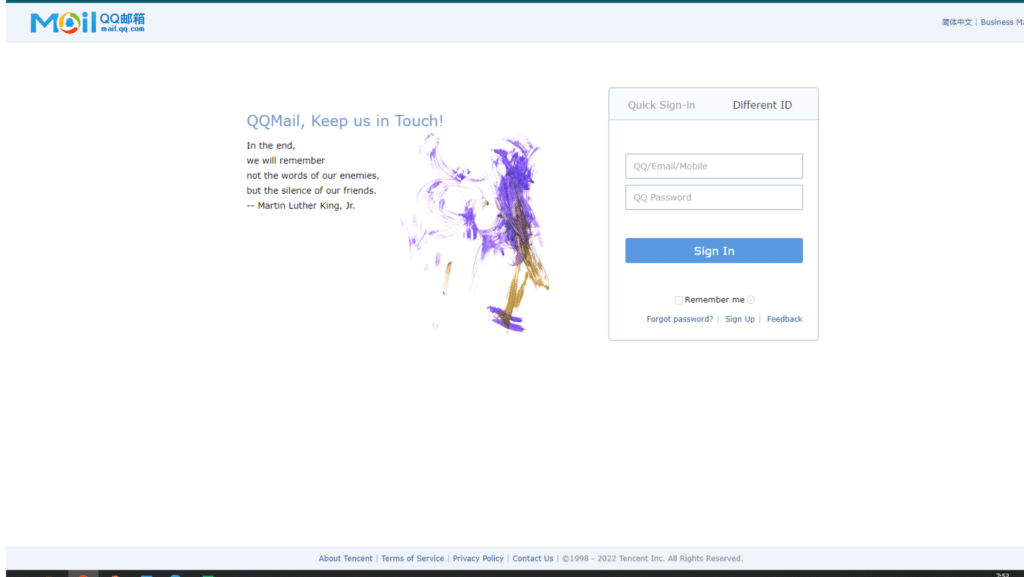
Open the QQ Mail sign up page
- STEP 1:
Your first step is the mail.qq.com sign up page in English. Google “QQ sign up” or open https://en.mail.qq.com/ (QQ Mail English).
STEP 2:
Then click on Sign Up to create account
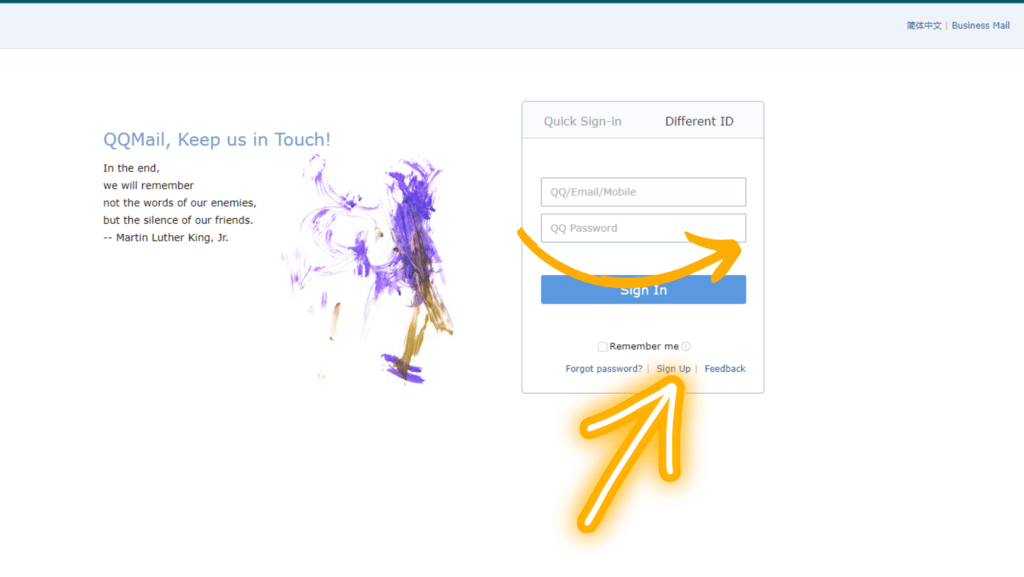
Sign up with email or Gmail
STEP 3:
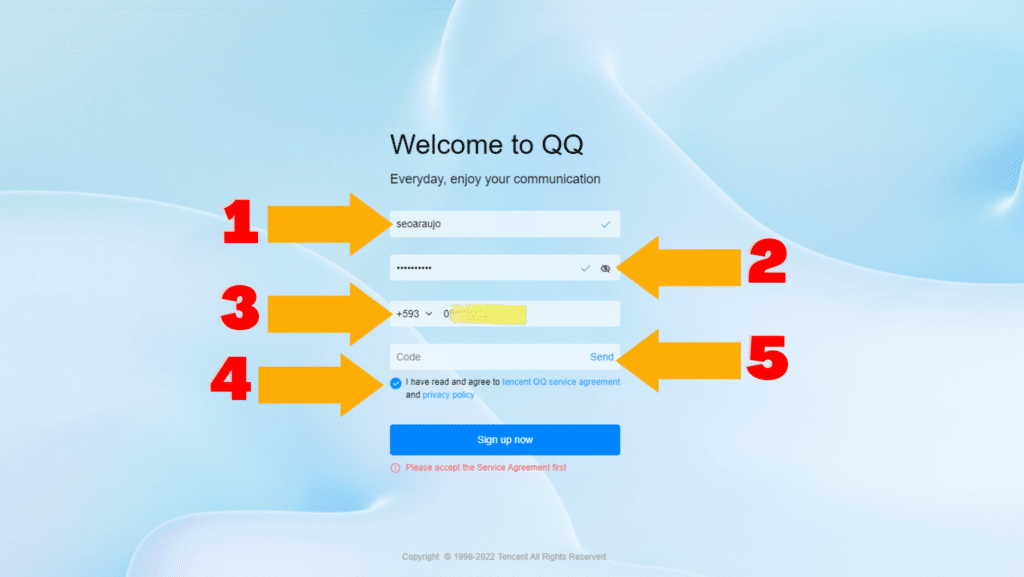
Now you need to fill in the different boxes with your information. In the first box, start typing your nickname and the second your password, do not forget that your password has capital letters and numbers and some special character to make it more secure.
Remember, if you dont have a chinese phone, check our Account Creation Service or send us an email at [email protected], so that we can help you with this step.
STEP 4:
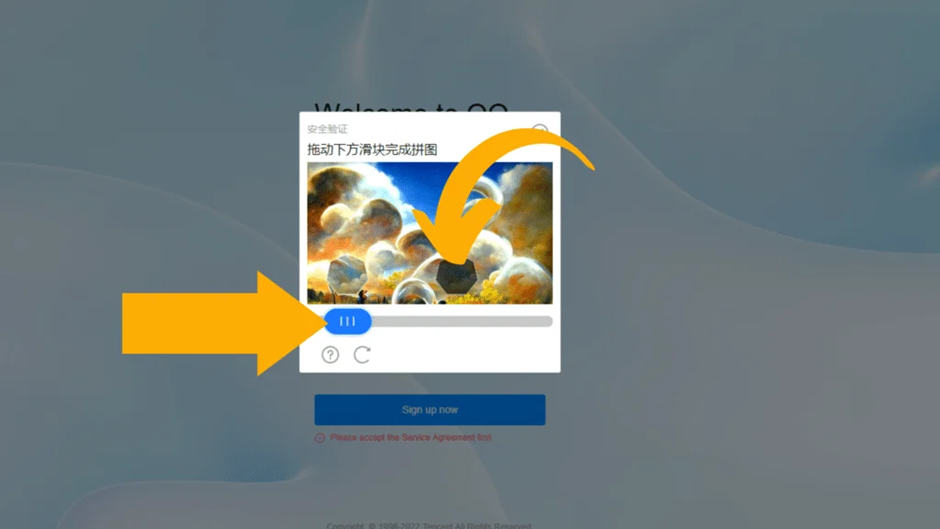
After clicking on send code, a small challenge will appear, which in this case is to move a piece in the form of a hexagon to complete a puzzle
STEP 5:
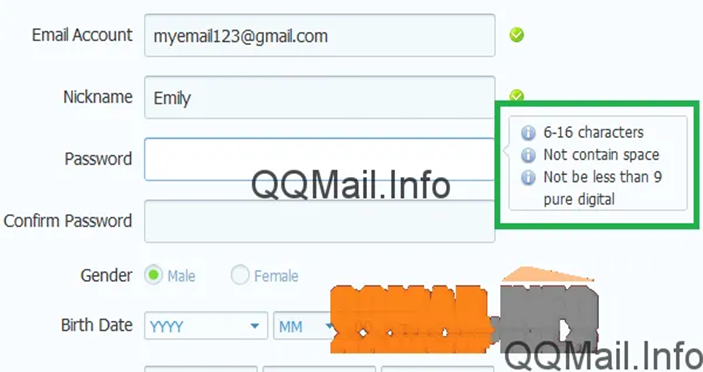
Continue by picking a nickname. It can be anything you want and it appears that it doesn’t have to be unique, since you’ll get a unique QQ ID number as your account identifier. Then, choose a password that meets the requirements stated in the little popup box, and enter it again to confirm it.
The QQ Mail sign up page will let you know how strong or weak your password is, but it will allow you to continue with a weak one (although this isn’t really recommended).
If you don’t have a Chinese phone number
STEP6:
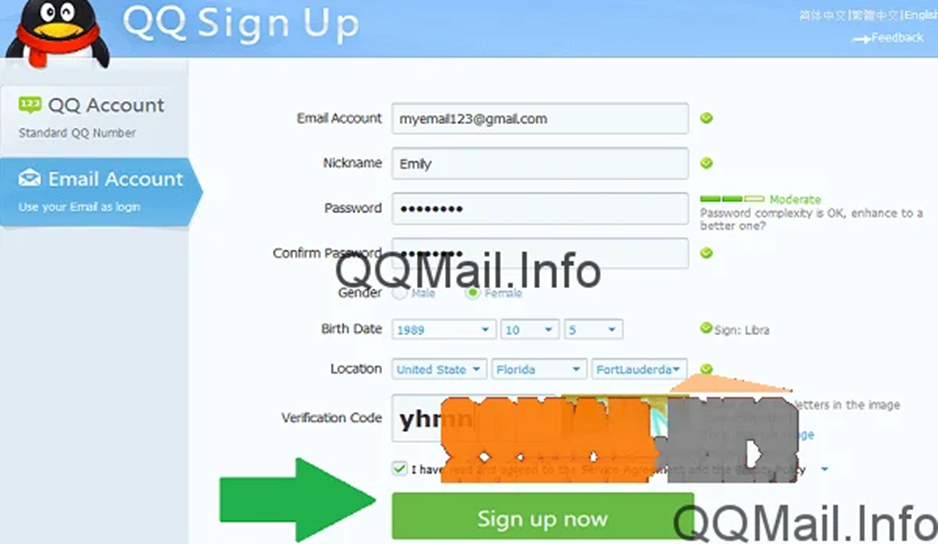
Type the verification code in the box at the bottom to prove you aren’t a robot, make sure the box is checked indicating you’ve read the fine print, and click “Sign up now”.
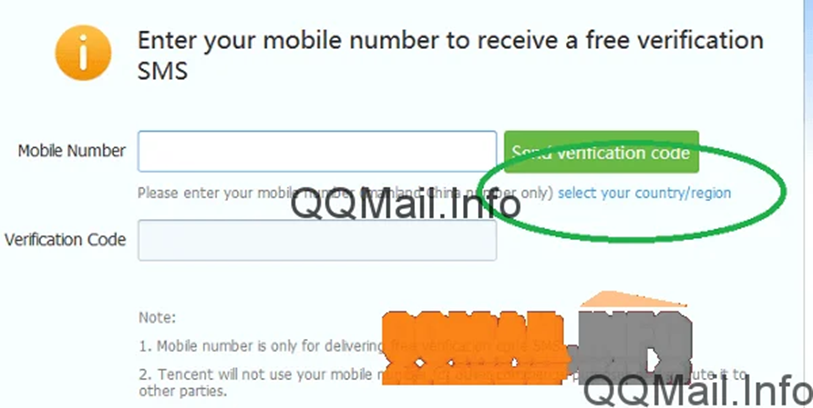
IMPORTANT! If you just go typing your phone number in right now, it won’t work because it’s set to accept only numbers from mainland China. If your phone number isn’t Chinese, click on the link that says “select your country/region”, and then pick your country with the appropriate code from the list. If it doesnt work, feel free to contact us.
STEP 7 :
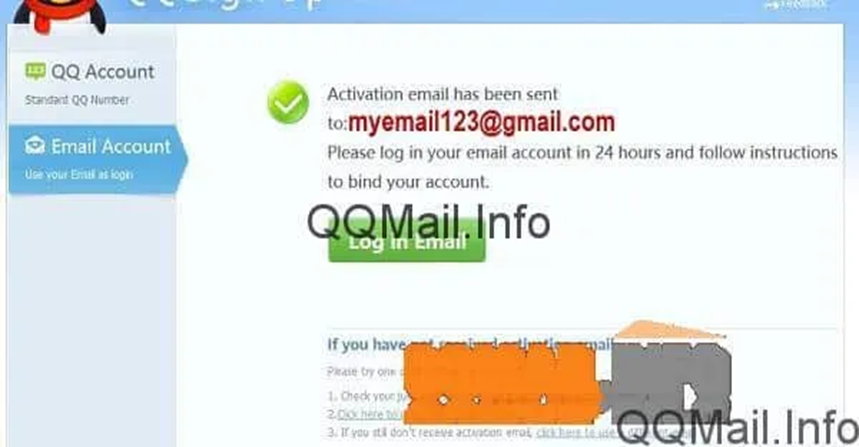
After that, you can enter your mobile phone number and you should get a free SMS text message within a matter of seconds that contains a 6-8 digit code. Type that code into the box, and submit it. If it is the right code, you should be taken to a page telling you that QQ Mail sent an activation email to the address you used to sign up.
Activate the account and save your QQ ID
STEP 8:
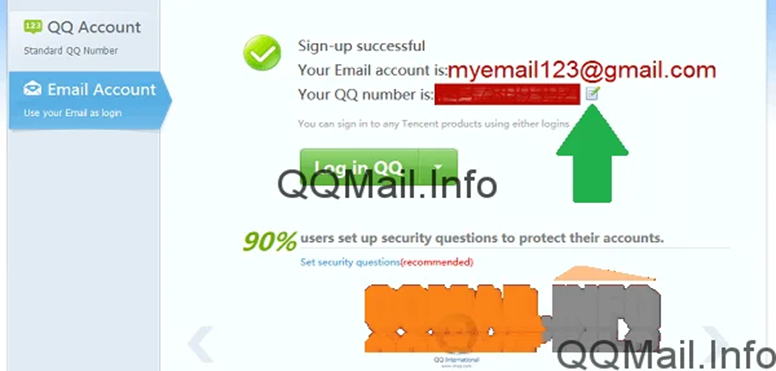
Next, you need to check your email for the activation link. I used Gmail to sign up for qqmail and it was sent to my “Updates” tab, but your mileage may vary. Click the big ol’ link in the body of the email.
STEP 9:
Tadaa! Your QQ Mail is all set up and you can log in by pressing the big green button.
And here’s something neat. Instead of scribbling your new QQ number down on a post-it note, click on the tiny button that looks like a notepad next to the ID number. This will download a text file that you can open in Notepad.
To learn how to sign in and out of your new qqmail account, check out our post: How to open and close a session in QQ Mail
We can create the QQ Mail account for you
We always encourage you to always try to create the account yourself. Even if you don't have a chinese phone, at least TRY IT ONCE sometimes it works.
However, if you don't suceed, we got you covered!
With our creation service we will provide a chinese contact that will help you get a fully verified QQMail account with your own Phone!
Avoid hacks and scams. These accounts will fully belong to you.
Send us an email at [email protected] if you have any doubts.
Personal account
$59.99

- We will help you create a QQMail account for you with a provider's chinese Phone!
- We will help you get the account set up and authenticated in two of your devices.
- Ready in less than 24 hours
- Customer service 24/7
Business account
$99.99

- We will help you create a QQMail account for your Business!
- We will help you fully set up your QQMail account and profile!
- Ready in less than 24 hours
- Customer service 24/7
We always encourage our viwers to always try to create the account yourself. Even if you don't have a chinese phone, at least try it once, sometimes it works.
However, if you don't suceed, we got you covered!
With our creation service we will provide a chinese contact that will help you get a fully verified QQMail account with your own Phone!
Avoid hacks and scams. These accounts will fully belong to you.
Send us an email at [email protected] if you have any doubts.
How to log in to QQ Mail
QQ Mail login in English

STEP1:
You’ll need to go to the login page for QQ Mail. Remember that this is a Chinese email service, so you’re going to want the English version of the sign in page. To get there, you can Google “qq mail sign in”, and your first result will be the English login page. Note the “en.” at the beginning of the URL - that stands for “English”.
STEP2:
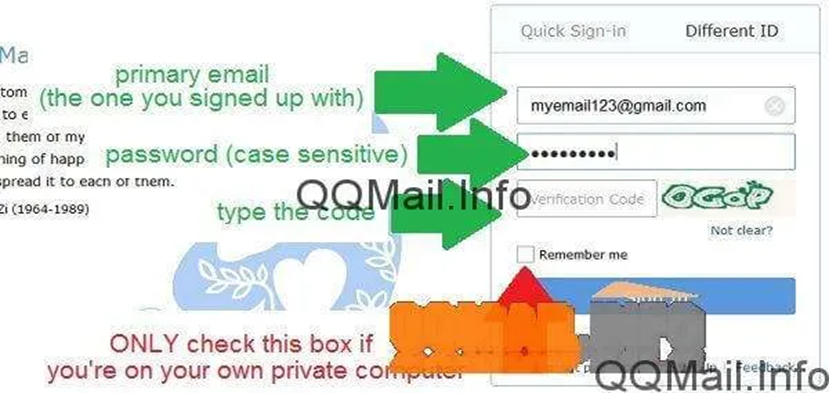
At this point, you’ll sign into your qqmail just like any email account. In the first field, type in your primary email address.If you saved or wrote down your QQ ID number after you set up your account, you can type that in instead. However, if you try to sign in the first time with your QQ Mail email address, which is your QQ ID followed by “@qq.com”, it probably won’t work.
Then, type in your password and enter the captcha code if necessary.
First login and activation
STEP3:
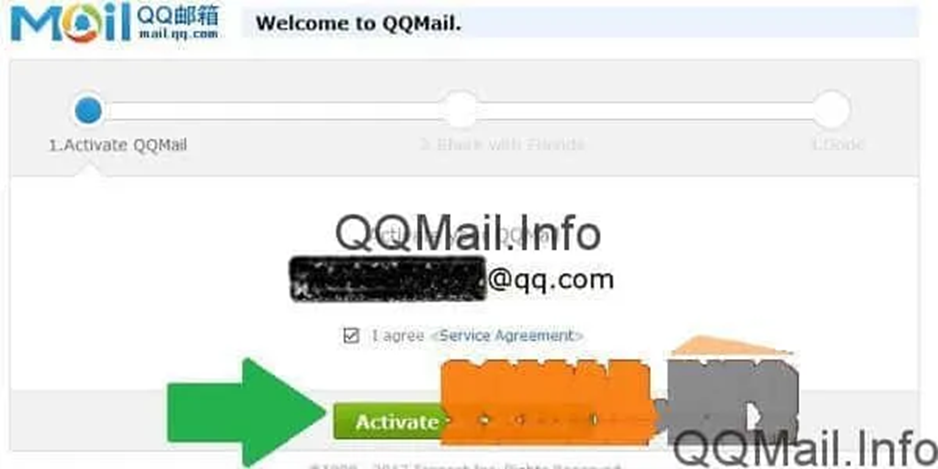
Ok, here’s the weird part about your first time logging in to qqmail. It’s going to ask you to “activate” your email. Isn’t that what I did when I entered the verification code from my text message and when I clicked the confirmation code in my email upon sign up? Well, apparently not. That set up your QQ Number, but now you have to confirm that you actually want to use your email. Don’t worry, this only happens the first time you log in.
STEP4:
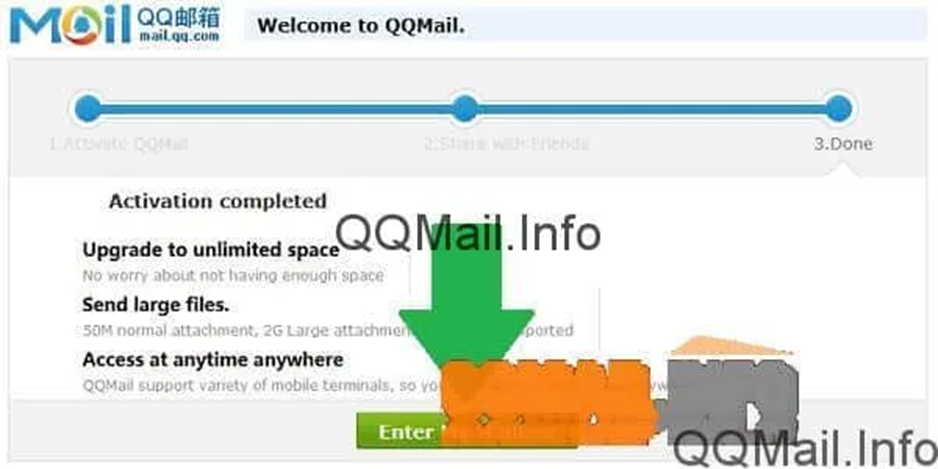
Now you finally have a verified, confirmed, activated, bona fide QQ Mail email account. There are some notes about what your new email capabilities are, like storage space and file size for attachments. When you’re ready to go to your brand new inbox, click on “Enter My Mailbox”.
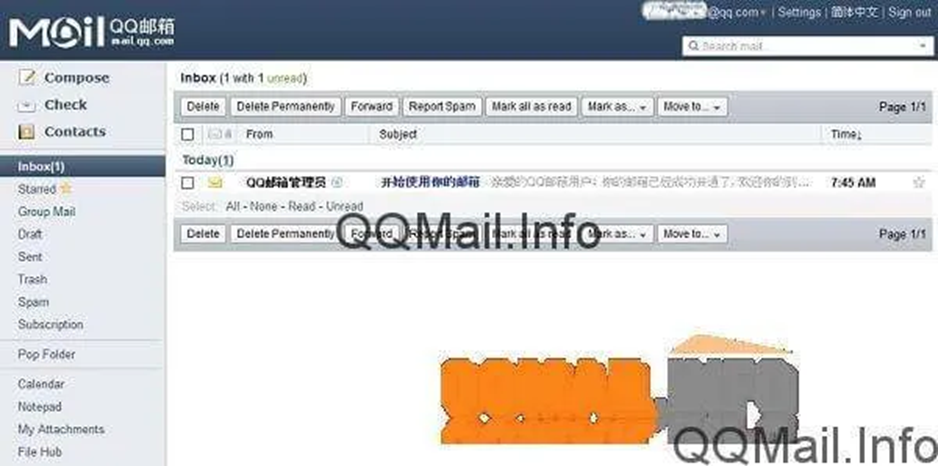
Welcome to QQ Mail (but, like, for real this time). As you can see, your inbox layout is fairly simple. You have probably received a welcome message from QQ, and I sure hope there isn’t any life-or-death information in there, because it’s in Chinese. If you can read Chinese, you’re leagues ahead of me.
Download the QQ Mail app
The app can be found both in the Playstore and the Applestore.
However, can as well download directly the APK.

How to sign out of QQ Mail
Now, if you are using your own personal computer and aren’t worried about random people sneaking into your QQ Mail, there’s no need to sign out. However, if you’re on a shared device, it’s always smart to sign out of qqmail before leaving the computer. You can also sign out just so that you can sign in again and see that you don’t have to go through the whole “activation” rigmarole like you did the first time.
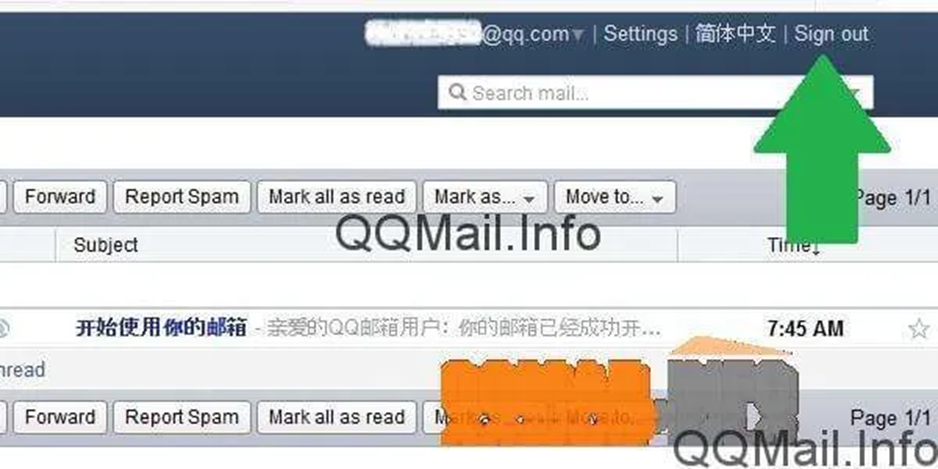
STEP1:
Just find the “Sign out” link in the top-right corner and click on it.
Now, just for fun, you can go back to the sign in page by clicking “Sign in again”. And from now on, when you log into qqmail, it will be the standard “username, password, go”. You might even be spared the captcha code if you’re on a computer that QQ Mail recognizes.

Oh, and if you’re curious about those Chinese characters up at the top next to “Business mail”… it will take you to the original qqmail sign in page in Chinese. So if I had to guess, I’d say that’s Chinese for “Chinese”.
If you think you can handle things from here, have fun with your new qqmail email address! For a guide on using the basic functions of your new account, see our post: How to send a message, video, image or file with QQ Mail.